E-mail Two-Step Authentication Contrib Package
Introduction
A single step log-in may not be sufficient in a high security environment. Two-step verification makes it harder for an intruder to impersonate a user.
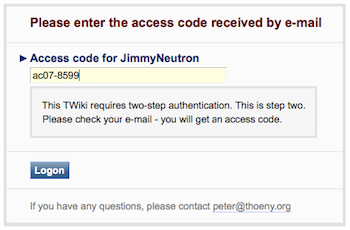
This extension adds two-step authentication to TWiki. The first step is the usual log-in with name and password. After that, a second authentication screen is shown prompting the user for an access code. The access code is sent by e-mail to the registered user who just logged in. This access code can be used only once. A white-list can be set so that users can log in with a single step at trusted locations, such as at known office locations.
makes it harder for an intruder to impersonate a user.
This extension adds two-step authentication to TWiki. The first step is the usual log-in with name and password. After that, a second authentication screen is shown prompting the user for an access code. The access code is sent by e-mail to the registered user who just logged in. This access code can be used only once. A white-list can be set so that users can log in with a single step at trusted locations, such as at known office locations.
Detailed Documentation
Diagram of two-step log-in process:
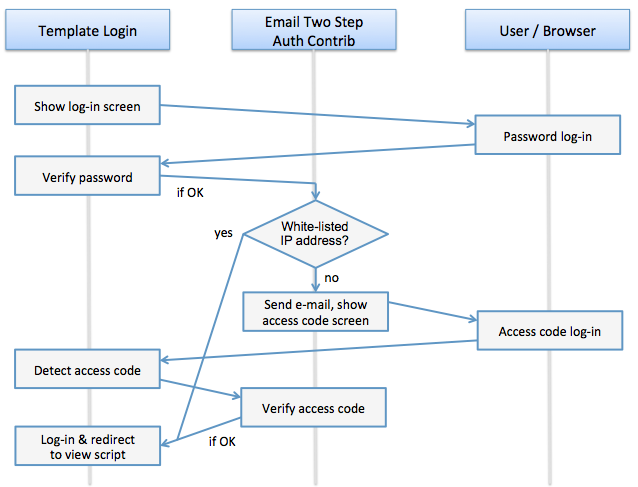
- TWiki's Login Manager shows the usual log-in screen
- The user logs in with user name and password
- The Login Manager verifies the password - this can be against TWiki's internal password manager or an external one, such as the LDAP password manager
- If the password is OK, the EmailTwoStepAuthContrib checks if the IP address of the user is white-listed
- If white-listed, the EmailTwoStepAuthContrib tells the Login Manager to log in the user
- Else, the EmailTwoStepAuthContrib generates a one-time-use access code, sends that to the registered user via e-mail, and shows an access code log-in screen
- The Login Manager receives the access code and forwards it to the EmailTwoStepAuthContrib
- The EmailTwoStepAuthContrib verifies the access code against the generated one
- If OK, the EmailTwoStepAuthContrib tells the Login Manager to log in the user
- White-listed IP addresses are typically used for offices so that employees can log in with a single step at work. The second step is implicit with trusted locations.
- The one-time-use access code has a certain life-span, the default is 10 minutes.
Security Considerations
This extension is primarily intended for access restricted TWiki sites that are installed in a public cloud, such as Amazon AWS. We recommend to install an SSL certificate and to enforce the https protocol. IP address spoofing cannot be done because establishing an SSL connection requires a handshake. The response to a request is sent to the indicated IP address, and if spoofed, it ends up at the actual address, not the intruder's. Thus a handshake fails because the would-be intruder does not receive the response.Installation Instructions
You do not need to install anything on the browser to use this contrib package. These instructions are for the administrator who installs the package on the server where TWiki is running.

- For an automated installation, run the configure script and follow "Find More Extensions" in the in the Extensions section.
- See the installation supplement on TWiki.org for more information.
- See the installation supplement
- Or, follow these manual installation steps:
- Download the ZIP file from the Plugins home (see below).
- Unzip
EmailTwoStepAuthContrib.zipin your twiki installation directory. Content:File: Description: data/TWiki/EmailTwoStepAuthContrib.txtContrib documentation topic pub/TWiki/EmailTwoStepAuthContrib/*.pngImage files templates/emailtwosteplogin.tmplSecond login screen template templates/emailtwostepmessage.tmplE-mail Message with access code template lib/TWiki/Contrib/EmailTwoStepAuthContrib.pmContrib Perl module lib/TWiki/Contrib/EmailTwoStepAuthContrib/Config.specConfigure spec file lib/TWiki/LoginManager/EmailTwoStepAuth.pmLogin manager for two-step login via e-mail - Set the ownership of the extracted directories and files to the webserver user.
- Patch core TWiki for versions TWiki-6.0.0 and older:
- Update
lib/TWiki/LoginManager/TemplateLogin.pmto the latest version from the SVN repository, http://svn.twiki.org/svn/twiki/branches/TWikiRelease06x00/core/lib/TWiki/LoginManager/TemplateLogin.pm
- Update
lib/TWiki.spec: Below$TWiki::cfg{LoginManager}add the following content, also at http://svn.twiki.org/svn/twiki/branches/TWikiRelease06x00/core/lib/TWiki.spec :
# **SELECTCLASS none,TWiki::LoginManager::*TwoStepAuth**
# TWiki can be configured to require two-step authentication, which is more
# secure because it makes it harder to impersonate a user. The first step is
# the usual authentication with username and password. After a successful
# first step, a second authentication step is required in order to log in.
# The two steps should be of different types, such as something the user
# <i>knows</i> (username and password), and something the user <i>has</i>
# (mobile phone with SMS). Two-step authentication currently requires
# {LoginManager} set to 'TWiki::LoginManager::TemplateLogin'.
# Available two-step authentication managers:
# <ol><li>
# none - Disable two-step authentication.
# </li><li>
# TWiki::LoginManager::EmailTwoStepAuth - Use e-mail for second step
# authentication. User receives e-mail with one-time-use access code.
# Requires installation of EmailTwoStepAuthContrib.
# Requires enabling {UseClientSessions} to track client sessions.
# </li><li>
# TWiki::LoginManager::SmsTwoStepAuth - Use SMS for second step
# authentication. User receives e-mail with one-time-use access code.
# Requires installation of SmsTwoStepAuthContrib.
# Requires enabling {UseClientSessions} to track client sessions.
# </li></ol>
$TWiki::cfg{TwoStepAuthManager} = 'none';
- Update
- Configuration:
- Run the configure script and open up the Security setup section.
- The
{LoginManager}needs to be set toTWiki::LoginManager::TemplateLogin - Set
{TwoStepAuthManager}toTWiki::LoginManager::EmailTwoStepAuth
- The
- Configure additional contrib settings in the Extensions section:
- White-listed IP addresses, typically used for offices so that employees can log in with a single step at work. Specify a comma-space separated list. Partial IP addresses ending in a dot can be used to specify a range. Example: 1.2.3.4, 5.6.7.
{EmailTwoStepAuthContrib}{WhitelistAddresses} = ''; - Maximum age of access code in seconds, default is 600 (10 min):
{EmailTwoStepAuthContrib}{MaxAge} = 600; - Name of two-step message template:
{EmailTwoStepAuthContrib}{MessageTmpl} = 'emailtwostepmessage'; - Name of login screen template:
{EmailTwoStepAuthContrib}{LoginTmpl} = 'emailtwosteplogin'; - Access code error message:
{EmailTwoStepAuthContrib}{AcessCodeError} = 'Invalid or outdated access code, please try again.';
- White-listed IP addresses, typically used for offices so that employees can log in with a single step at work. Specify a comma-space separated list. Partial IP addresses ending in a dot can be used to specify a range. Example: 1.2.3.4, 5.6.7.
- Run the configure script and open up the Security setup section.
- Test if the configuration is successful:
- Verify two-step authentication: Log out and log in. You should get a second authentication screen after log-in. Enter the access code you receive via e-mail into the second authentication screen.
- Verify single step authentication when logging in from an IP address on the white-list.
Contrib Info
- One line description, is shown in the TextFormattingRules topic:
- Set SHORTDESCRIPTION = Two-step authentication using e-mail for the second step
| Author: | TWiki:Main.PeterThoeny |
| Copyright: | © 2014 Wave Systems Corp. © 2014 TWiki:Main.PeterThoeny © 2014 TWiki:TWiki.TWikiContributor |
| License: | GPL ( GNU General Public License) |
| Sponsor: | Wave Systems Corp. |
| Version: | 2014-08-25 |
| Change History: | |
| 2014-08-25: | TWikibug:Item7539: Initial version |
| TWiki Dependency: | $TWiki::Plugins::VERSION 6.1 |
| CPAN Dependencies: | none |
| Other Dependencies: | none |
| Perl Version: | 5.005 |
| Plugin Benchmark: |
GoodStyle nn%, FormattedSearch nn%, EmailTwoStepAuthContrib nn% |
| Home: | http://TWiki.org/cgi-bin/view/Plugins/EmailTwoStepAuthContrib |
| Feedback: | http://TWiki.org/cgi-bin/view/Plugins/EmailTwoStepAuthContribDev |
| Appraisal: | http://TWiki.org/cgi-bin/view/Plugins/EmailTwoStepAuthContribAppraisal |


| I | Attachment | History | Action | Size | Date | Who | Comment |
|---|---|---|---|---|---|---|---|
 md5 md5 |
EmailTwoStepAuthContrib.md5 | r1 | manage | 0.2 K | 2014-08-26 - 01:16 | PeterThoeny | |
 tgz tgz |
EmailTwoStepAuthContrib.tgz | r1 | manage | 179.2 K | 2014-08-26 - 01:16 | PeterThoeny | |
| zip |
EmailTwoStepAuthContrib.zip | r1 | manage | 183.1 K | 2014-08-26 - 01:16 | PeterThoeny | |
| ext |
EmailTwoStepAuthContrib_installer | r1 | manage | 4.0 K | 2014-08-26 - 01:16 | PeterThoeny |

Topic revision: r3 - 2018-07-17 - PeterThoeny


 Site map
 Blog web

 Index
Index Search
 Search extensions
 Search by tags
 Changes
 Notifications
 RSS Feed
 Statistics
 Preferences
 Community
  Readme first!
 Rate extensions!
 Add-Ons
  Development topics
 Idea topics
 Plugins
  Development topics
 Idea topics
 Skins
Skins  Development topics
 Idea topics
 Code Contribs
  Development topics
 Idea topics


 Account


 Ideas, requests, problems regarding TWiki? Send feedback. Ask community in the support forum.
Copyright © 1999-2026 by the contributing authors. All material on this collaboration platform is the property of the contributing authors.